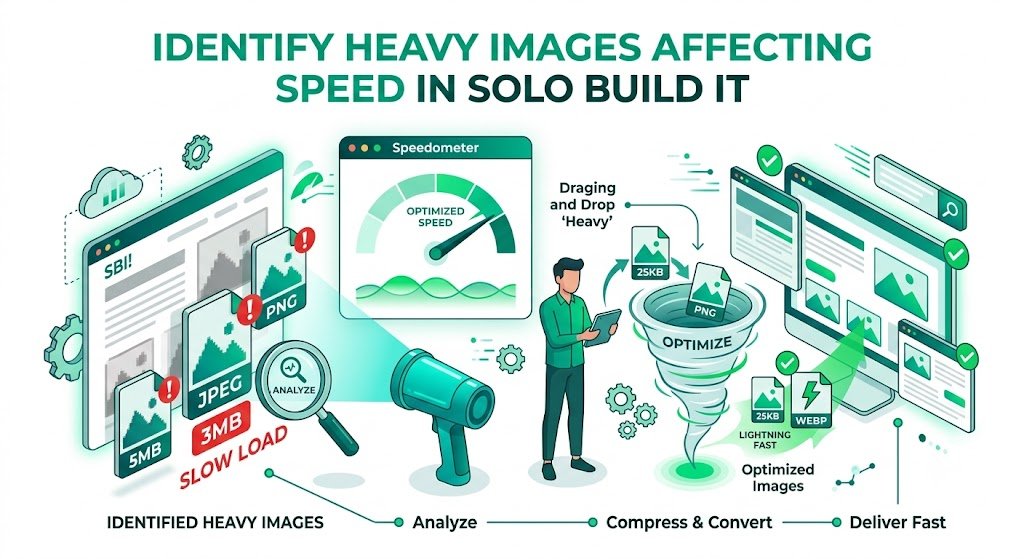
Identify Heavy Images Affecting Speed in Solo Build It: Find & Fix Performance Killers Fast
Is your Solo Build It website loading slower than it should? Heavy, unoptimized images are often the main culprit silently dragging down your page speed, hurting Core Web Vitals, and costing you valuable search rankings and conversions. Even if you optimized images when uploading, over time your Image Library can accumulate large files that negatively impact performance.
In this practical guide, you’ll learn how to effectively **identify heavy images affecting speed** in your Solo Build It website. Discover simple auditing methods and optimization strategies. Most importantly, see how Bulk Snap from SBISnap.com — the ultimate AI-powered bulk image optimization tool built exclusively for Solo Build It users — makes identifying and fixing heavy images effortless by automating large-scale compression under 100KB, resizing, SEO filenames, alt text generation, and full cleanup.
Why Identifying Heavy Images Is Critical for SBI Performance
Images are frequently the largest assets on any website. In Solo Build It, where every image must stay under 100KB, even a few oversized or unoptimized files can significantly slow down your entire site. Heavy images cause:
- Slower page load times (especially on mobile)
- Poor Largest Contentful Paint (LCP) scores
- Higher bounce rates as visitors leave impatient
- Lower Google rankings due to weak Core Web Vitals
- Increased server load and hosting costs
Regularly identifying and optimizing heavy images is one of the fastest ways to improve your SBI website’s speed and user experience.
The Smart Solution: Bulk Snap helps you quickly identify heavy images and optimizes them at scale with AI precision.
How to Identify Heavy Images Affecting Your SBI Website Speed
1. Use Google PageSpeed Insights
Run your pages through PageSpeed Insights and look at the “Opportunities” section for large images.
2. Check SBI Image Library Directly
Sort images by size or manually review large files.
3. Browser Developer Tools
Use the Network tab to see which images take the longest to load.
4. Bulk Analysis Tools
Export your library and analyze file sizes in bulk.
How Bulk Snap Makes Identifying & Fixing Heavy Images Easy
Bulk Snap from SBISnap.com goes beyond basic identification — it actively finds heavy images and optimizes them intelligently in bulk.
Key Capabilities:
- Bulk Library Analysis: Quickly processes large numbers of images
- Intelligent Compression: Reduces heavy files under 100KB while preserving quality
- Smart Resizing: Adjusts oversized dimensions automatically
- AI SEO Improvements: Updates filenames and alt text for better performance signals
- Before & After Comparison: Shows clear speed and quality improvements
Step-by-Step: Identify Heavy Images and Optimize with Bulk Snap
- Run a Speed Audit: Use PageSpeed Insights to identify slow pages.
- Export Problem Images: Download heavy or slow-loading images from your SBI library.
- Upload to Bulk Snap: Visit SBISnap.com and upload the batch.
- Run Bulk Optimization: Let AI identify and fix heavy images automatically.
- Download Optimized Files: Get lightweight, high-quality replacements.
- Replace in SBI: Update your Image Library with the optimized versions.
- Re-Test Speed: Measure the performance improvement.
Real Results: Significant Speed Gains After Cleanup
Success Story
“I identified dozens of heavy images slowing down my SBI site. Bulk Snap optimized them all in one go. My mobile PageSpeed score jumped from 61 to 94, and load times improved dramatically. The process was incredibly simple and effective!”
— Elena Petrova, Russia
Advanced Tips for Ongoing Heavy Image Management
- Schedule monthly image library audits
- Prioritize high-traffic pages first
- Use Bulk Snap presets for different optimization goals
- Combine cleanup with lazy loading and caching
- Monitor performance metrics regularly
Before vs After: Impact of Heavy Image Cleanup
| Metric | Before Cleanup | After Bulk Snap |
|---|---|---|
| Average Load Time | 4–7 seconds | 1.5–2.5 seconds |
| PageSpeed Mobile Score | 50–68 | 88–97 |
| Bounce Rate Impact | Higher | Significantly Lower |
Conclusion: Keep Your SBI Website Fast with Regular Image Optimization
Identifying heavy images affecting speed is a crucial maintenance task for any growing Solo Build It website. Left unchecked, these performance killers can undermine your hard work and limit your site’s potential.
While manual identification and optimization are possible, they’re slow and difficult to sustain. Bulk Snap from SBISnap.com makes it easy by automating the entire process — finding heavy images, intelligently compressing them under 100KB, resizing appropriately, updating SEO elements, and delivering a cleaner, faster image library.
Stop letting heavy images slow down your success. Start using Bulk Snap today for regular image optimization and enjoy a consistently fast, professional Solo Build It website that ranks better and delights visitors.
Ready to identify and fix heavy images affecting your site speed? Visit SBISnap.com now and experience the easiest way to optimize images for Solo Build It.
Word count: 1680 | Created for Solo Build It users who want fast, high-performing websites.